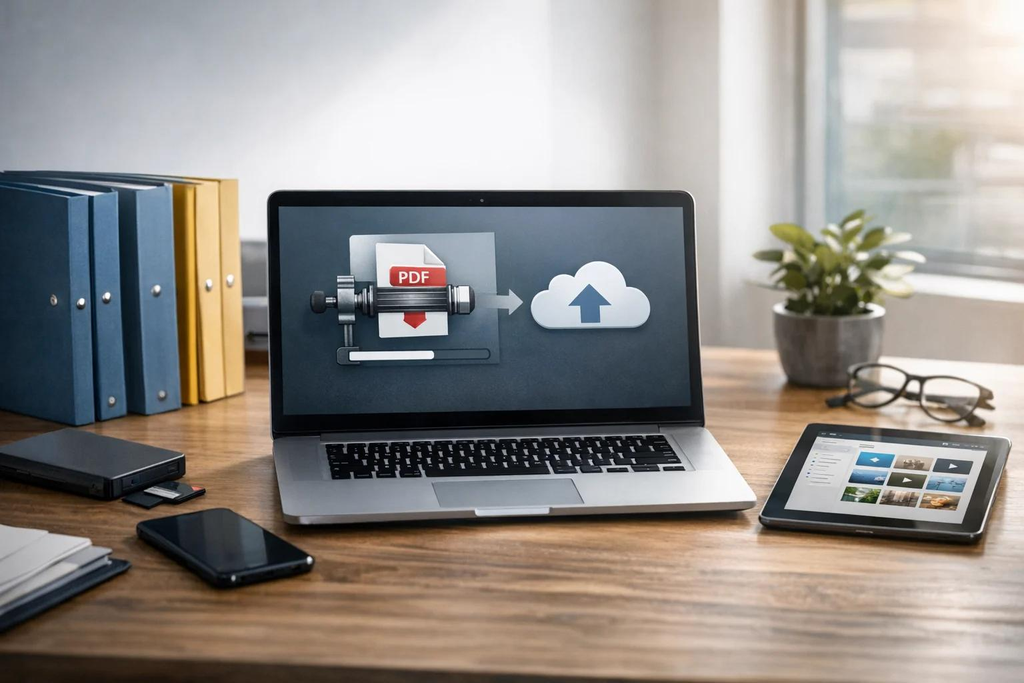
PDF files are useful for sharing documents, submitting applications, sending reports, and storing important information. However, large PDF files can sometimes create problems when uploading or sharing them. Email services, online forms, and websites often have file-size limits, making it difficult to send bigger documents.
This is where online PDF compression tools become helpful. They allow you to reduce the size of a PDF without making its text, images, or overall layout difficult to read.
The good thing is that you do not always need to install additional software to compress a PDF. Many online tools work directly through your browser and take only a few minutes to use.
In this guide, you will learn how to compress PDF files online, which settings to choose, how to maintain document quality, and what to check before downloading your compressed file.
1. Understand How PDF Compression Works
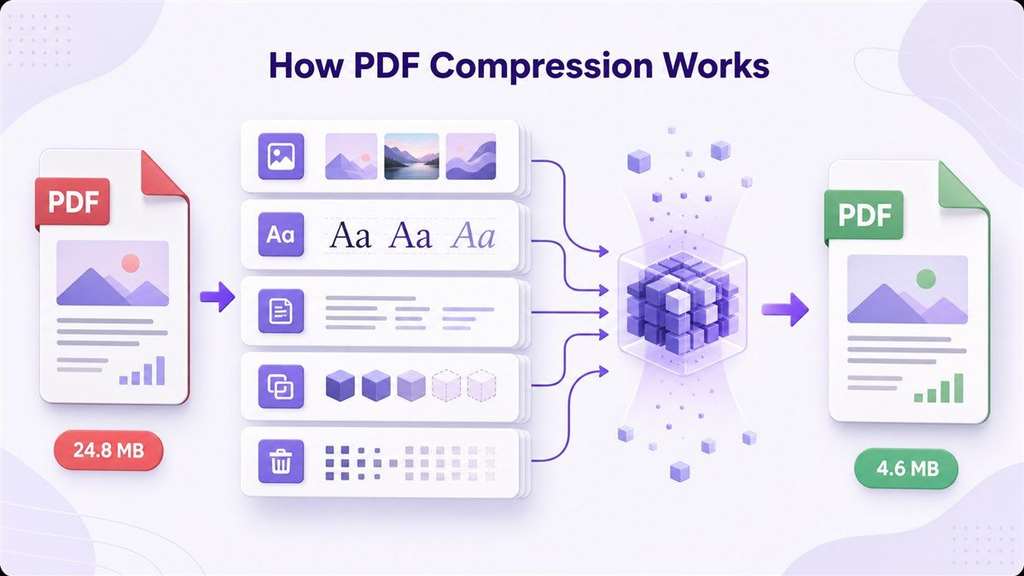
Before compressing a document, it helps to understand what happens during the process.
PDF files may contain high-resolution images, embedded fonts, graphics, and other elements that increase their overall size. Compression reduces unnecessary file data and optimizes certain elements to make the document smaller.
There are generally two common approaches:
- Lossless compression: Reduces file size without removing image information.
- Lossy compression: Reduces file size further by lowering image quality or resolution.
If your PDF contains important photographs, certificates, or detailed graphics, choose a compression option that prioritizes quality.
2. Choose a Reliable Online PDF Compressor
The first step is finding a suitable online PDF compression tool. Several websites provide simple interfaces where you can upload a document and download a smaller version.
When selecting a tool, consider these factors:
- Easy-to-understand compression settings.
- Support for large PDF files.
- No unnecessary software installation.
- Good document-quality preservation.
- Clear privacy and file-deletion policies.
Avoid uploading confidential documents to unfamiliar websites. Always review their privacy information before using an online service.
3. Upload Your PDF File

1. Open PDF Tool
Start by visiting a reliable online PDF compression website.
Tap to View Points
1. Open your browser.
2. Visit a PDF tool.
3. Find compression option.
4. Check website features.
5. Review available settings.
6. Prepare your document.

2. Choose Your PDF
Select the document you want to make smaller.
Tap to View Points
1. Click Choose Files.
2. Open your folder.
3. Find the PDF document.
4. Select the correct file.
5. Check its file name.
6. Confirm your selection.

3. Check File Size
Review the original document size before compression.
Tap to View Points
1. Locate your PDF file.
2. Check its current size.
3. Review file properties.
4. Identify large documents.
5. Note the original size.
6. Keep a backup copy.

4. Upload the Document
Add your selected PDF to the compression tool.
Tap to View Points
1. Click the upload button.
2. Select your PDF.
3. Wait for uploading.
4. Check the document name.
5. Confirm successful upload.
6. Continue to settings.

5. Check Document Details
Make sure the uploaded document is ready for compression.
Tap to View Points
1. Confirm the PDF format.
2. Check the page count.
3. Review document details.
4. Look for upload errors.
5. Check file accessibility.
6. Verify the selected file.

6. Prepare for Compression
Complete the upload process before choosing compression settings.
Tap to View Points
1. Review uploaded PDF.
2. Keep original document.
3. Check available options.
4. Choose quality settings.
5. Avoid unnecessary changes.
6. Get ready to compress.
After selecting a suitable tool, open its PDF compression page.
Most websites display an upload button or a drag-and-drop area. Select your PDF from your computer or drag the document into the designated space.
Before uploading, check that you have selected the correct file. If the document contains multiple pages, make sure the original file opens properly.
A few things to remember:
- Check the document name before uploading.
- Keep an original copy as a backup.
- Make sure the PDF is not damaged.
- Check whether the website supports password-protected PDFs.
4. Select the Right Compression Level
Many online compressors offer different compression settings. These options help you balance file size and document quality.
| Compression Level | Best For | Expected Result |
|---|---|---|
| Low | Important documents | Better quality retention |
| Medium | Everyday PDFs | Balanced file size and quality |
| High | Large documents | Smaller file size, possible quality reduction |
For most everyday documents, medium compression is a reasonable starting point.
If your PDF includes detailed images, scanned pages, or graphics, try low compression first. High compression may make images appear blurry or reduce small text readability.
5. Compress the PDF File
Once you have selected the preferred settings, start the compression process.
The website will process the document and create a smaller PDF. Processing time depends on the original file size, number of pages, and complexity of its contents.
Do not close the browser tab while the document is being processed.
After compression, many websites display the new file size. Compare it with the original size to understand how much space has been saved.
6. Download and Check the Compressed Document
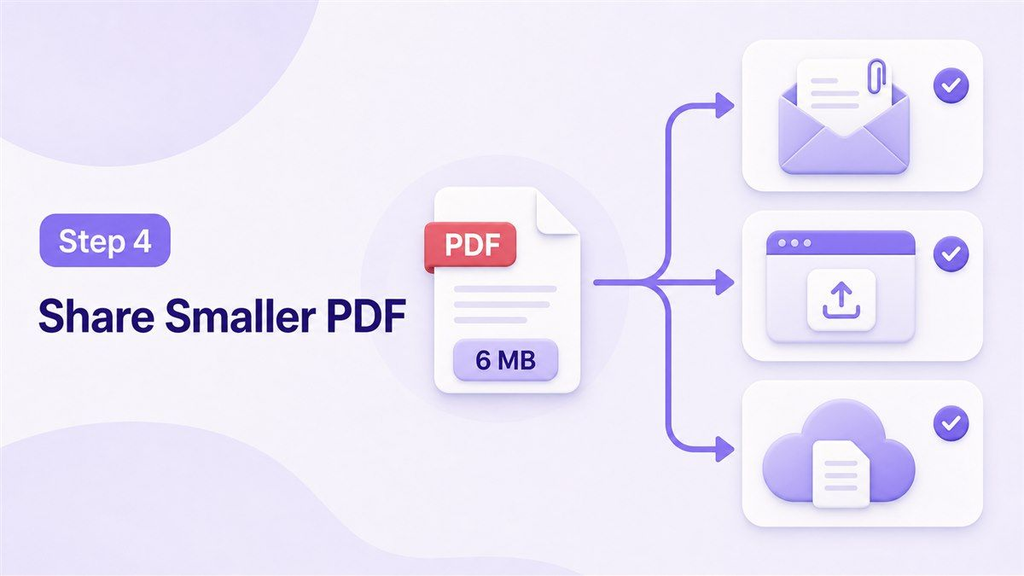
After the compression process finishes, download the new PDF to your device.
Do not assume that a smaller file is automatically a better file. Open it and carefully review the important pages.
Check these details:
- Text should remain readable.
- Images should not look excessively blurry.
- Page layouts should remain consistent.
- Tables and graphics should display properly.
- No pages should be missing.
If the quality is not satisfactory, try a lower compression level.
7. Compare PDF File Size Before and After Compression
Comparing the original and compressed files helps you understand whether the process worked as expected.
For example, imagine your original PDF is 10 MB and the compressed file is 4 MB. This means you have reduced the file size by 6 MB.
| Original Size | Compressed Size | Space Saved |
|---|---|---|
| 10 MB | 4 MB | 6 MB |
| 8 MB | 5 MB | 3 MB |
| 15 MB | 7 MB | 8 MB |
Actual results depend on the document’s contents and the compression method.
8. Keep Your PDF Documents Safe
Online compression is convenient, but document privacy should not be ignored.
If your PDF contains personal details, financial records, identification documents, or business information, use a trusted service with clear privacy policies.
For sensitive documents, consider using offline PDF software instead of uploading files to a third-party website.
You should also keep the original document until you have checked the compressed version.
Common Mistakes to Avoid When Compressing PDFs
1. Choosing High Compression
Using the highest compression setting can affect the appearance of your PDF. Images may become blurry, and small text may lose clarity.
Tap to View Points
1. Avoid maximum compression unnecessarily.
2. Check image quality.
3. Keep text readable.
4. Choose balanced settings.
5. Compare file sizes.
6. Review the final PDF.

2. Ignoring Document Security
Uploading private documents to unknown websites can create privacy risks. Always check the service before sharing personal or professional files.
Tap to View Points
1. Avoid unknown websites.
2. Check privacy policies.
3. Protect personal information.
4. Use trusted tools.
5. Avoid unnecessary uploads.
6. Consider offline software.
3. Skipping the Final Review
Downloading a compressed PDF without checking it can lead to problems. Important text, images, or page layouts may not appear as expected.
Tap to View Points
1. Open the compressed file.
2. Check every page.
3. Review image clarity.
4. Read small text.
5. Compare with original.
6. Keep a backup copy.
A few small mistakes can affect the final document.
- Choosing the highest compression level without checking quality.
- Uploading confidential files to unknown websites.
- Deleting the original document too early.
- Forgetting to review the downloaded PDF.
- Compressing an already optimized document unnecessarily.
Taking a minute to check these details can save you from having to repeat the entire process.
Conclusion
Compressing PDF files online is a simple way to make large documents easier to upload, store, and share. You can complete the process using a browser without installing additional software.
The most important thing is choosing the right compression level. Start with a balanced setting, download the compressed document, and check its text, images, and page layout before sharing it.
With a little care, you can reduce PDF file sizes while keeping your documents clear and useful.
FAQ’s
1. How can I compress PDF files online without losing quality?
Choose a reliable online PDF compressor and select a low or balanced compression setting. This helps reduce file size while maintaining readable text and clear images.
2. Is it possible to compress a PDF without installing software?
Yes, many online PDF compression tools work directly in your web browser. You can upload your document, select compression settings, and download the smaller file.
3. Does compressing a PDF affect image quality?
It depends on the compression method. Lossless compression generally preserves image information, while high lossy compression may reduce image resolution and clarity.
4. Why is my PDF still large after compression?
Your PDF may contain high-resolution images, scanned pages, or large embedded elements. Some documents are already optimized, so additional compression may produce only a small reduction.
5. Is it safe to use online PDF compression tools?
Many online tools offer document compression, but privacy practices differ. Choose a trusted website, review its privacy policy, and avoid uploading sensitive files to unfamiliar services.
The Bloggometry team
Written and checked by the people who run Bloggometry.