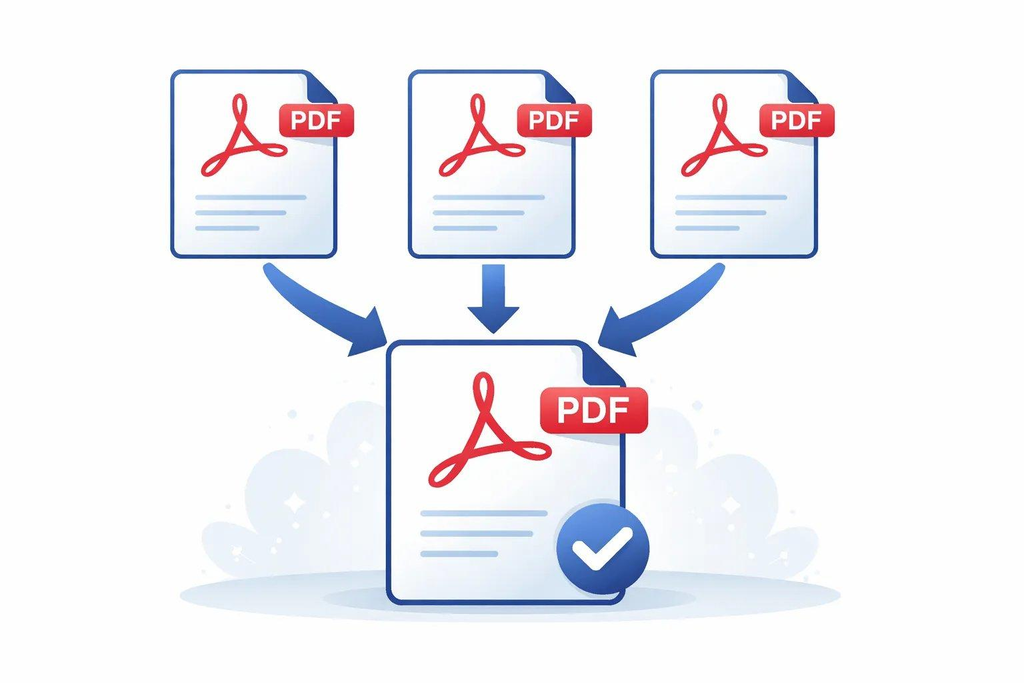
Working with multiple PDF files can become confusing, especially when you need to share several documents together. For example, you may have separate PDF files containing application forms, invoices, reports, certificates, or study notes.
Sending each file individually takes extra time and can make document management difficult. A simple solution is to combine multiple PDF files into one document.
Merging PDFs allows you to organize related pages in a single file. It also makes sharing, storing, printing, and reviewing documents more convenient.
You do not necessarily need advanced editing skills or expensive software to do this. Many online PDF merger tools let you upload multiple files, arrange their order, and download the combined document.
In this guide, you will learn how to combine multiple PDF files into one document easily, organize pages correctly, and avoid common mistakes during the process.
1. Understand Why Combining PDF Files Is Useful
Combining PDF files is helpful when several documents belong to the same project or purpose.
Instead of managing separate attachments, you can keep everything together in one organized document.
Here are some common situations where merging PDFs can help:
- Students can combine notes from different chapters.
- Employees can organize reports into one file.
- Businesses can merge invoices and supporting documents.
- Job applicants can combine resumes and certificates.
- Travelers can organize booking confirmations and itineraries.
Having everything in one PDF makes it easier to find and share important information.
2. Select a Suitable Online PDF Merger
The first step is choosing a reliable PDF merging tool.
Several online services provide PDF merging features directly through a web browser. You generally do not need to install any additional application.
Before selecting a tool, check the following points:
- Supports multiple PDF uploads.
- Allows you to rearrange file order.
- Maintains original page formatting.
- Provides a simple download option.
- Clearly explains its privacy and security policies.
For confidential business or personal documents, consider using trusted offline PDF software.
3. Upload Multiple PDF Files

1. Choose PDF Files
Choose the documents you want to combine.
Tap to View Points
1. Open PDF merger.
2. Find upload option.
3. Select documents.
4. Choose multiple files.
5. Check file names.
6. Confirm selection.

2. Use Upload Option
Upload your selected PDF documents.
Tap to View Points
1. Click Choose Files.
2. Open your folder.
3. Select PDF files.
4. Upload documents.
5. Wait for processing.
6. Check uploaded files.

3. Select Multiple PDFs
Select all the required files together.
Tap to View Points
1. Hold Ctrl on Windows.
2. Hold Command on Mac.
3. Select required files.
4. Avoid duplicate PDFs.
5. Include all documents.
6. Review selection.

4. Check Uploaded Files
Review every document before merging.
Tap to View Points
1. Review file names.
2. Check PDF formats.
3. Confirm uploads.
4. Remove incorrect files.
5. Check missing PDFs.
6. Keep original copies.

5. Add More Documents
Include any missing PDF files.
Tap to View Points
1. Find Add Files option.
2. Select missing PDFs.
3. Upload extra documents.
4. Check new files.
5. Remove unnecessary files.
6. Prepare for merging.

6. Keep Files Organized
Organize documents before combining them.
Tap to View Points
1. Create a separate folder.
2. Use clear file names.
3. Save original PDFs.
4. Group related documents.
5. Check file versions.
6. Prepare all documents.
After opening the PDF merger website, look for an option such as Upload Files, Choose Files, or Merge PDF.
Select all the PDF documents you want to combine.
You can usually upload several files together or add them one at a time.
Before continuing, check the following:
- Every required PDF has been uploaded.
- No unrelated document is included.
- All files open correctly.
- You have selected the latest versions.
Keeping your documents organized before uploading makes the entire process easier.
4. Arrange the PDF Files in the Correct Order
This is one of the most important steps when merging multiple documents.
Most online PDF merger tools allow you to move files up or down before combining them. Some also provide drag-and-drop controls.
For example, if you are combining documents for a job application, you might arrange them like this:
| Order | Document |
|---|---|
| 1 | Resume |
| 2 | Cover Letter |
| 3 | Educational Certificates |
| 4 | Experience Certificate |
| 5 | Supporting Documents |
A proper sequence helps readers understand the document without jumping between unrelated pages.
Always review the file order before starting the merging process.
5. Merge Multiple PDF Files Into One Document
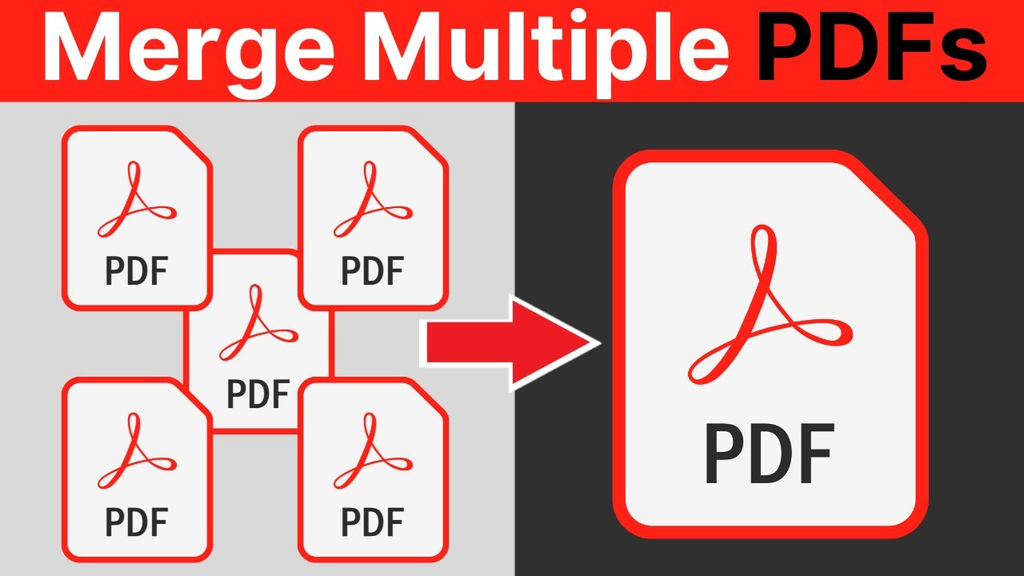
Once all files are uploaded and arranged, select the Merge or Combine option.
The tool will process your documents and create a single PDF containing the pages from all selected files.
Processing time depends on the number of files, total page count, and file sizes.
Wait until the process is complete before leaving the page.
After merging, download the combined PDF to your computer.
6. Check the Combined PDF Carefully
Downloading the merged document is not the final step. You should open the new file and check whether everything has been combined correctly.
Review the following details:
- All original pages are included.
- Documents appear in the correct sequence.
- Text and images remain readable.
- Page orientation is correct.
- Tables and graphics display properly.
- No unexpected blank pages have appeared.
If something looks incorrect, return to the merger tool and repeat the process after adjusting the file order or selecting the correct documents.
7. Rename and Organize Your Combined PDF
1. Choose a Clear File Name
Give your combined PDF a meaningful name so you can find it easily later.
Tap to View Points
1. Use simple file names.
2. Mention the document purpose.
3. Avoid confusing words.
4. Use dates when needed.
5. Keep names short.
6. Check spelling.
2. Create Separate Folders
Keep related PDF documents together to make file management easier.
Tap to View Points
1. Create a main folder.
2. Make separate subfolders.
3. Group related documents.
4. Organize files by date.
5. Keep important PDFs together.
6. Remove unnecessary copies.

3. Save and Check Your PDF
Review the renamed document and make sure it is saved in the correct location.
Tap to View Points
1. Save the final PDF.
2. Select the correct folder.
3. Check the file name.
4. Open the document.
5. Review all pages.
6. Keep a backup copy.
A clear file name makes it easier to identify your document later.
Instead of keeping a general name such as merged-file.pdf, use a name that describes its purpose.
Some useful examples include:
- Job_Application_Documents.pdf
- Monthly_Business_Report.pdf
- Study_Notes_2026.pdf
- Travel_Booking_Details.pdf
- Invoice_Collection.pdf
You can also create separate folders for work, education, personal records, and financial documents.
This simple habit makes document management much easier.
8. Choose Between Online and Offline PDF Merging
Both online and offline tools can help you combine PDF files. The right option depends on your requirements.
| Feature | Online PDF Merger | Offline PDF Software |
|---|---|---|
| Installation | Usually not required | Usually required |
| Internet | Required | Not always required |
| Convenience | Quick browser access | Useful for regular work |
| Privacy | Depends on service policies | Files can stay on your device |
| Editing options | Depends on the website | Depends on the software |
For occasional document merging, online tools can be convenient. For sensitive files or frequent professional work, offline software may be a better choice.
9. Protect Your Documents During the Merging Process
Document security matters when combining personal or professional PDFs.
Before uploading files to an online service, check its privacy policy and understand how uploaded documents are stored and deleted.
Keep these precautions in mind:
- Avoid unknown websites.
- Do not upload sensitive documents unnecessarily.
- Keep backup copies of important PDFs.
- Use trusted software for confidential records.
- Check the final document before sharing it.
Taking these precautions helps you manage documents more responsibly.
Common Mistakes to Avoid When Merging PDF Files
Even a simple merging process can create problems if you skip important checks.
Avoid these common mistakes:
- Uploading the wrong PDF files.
- Forgetting to arrange the page order.
- Including duplicate documents.
- Ignoring blank or unnecessary pages.
- Sharing the merged document without reviewing it.
- Using an unreliable website for private information.
A quick review before downloading can help prevent most of these issues.
Conclusion
Combining multiple PDF files into one document is a practical way to organize information and simplify file sharing. Whether you are preparing an application, arranging business reports, or collecting study materials, merging PDFs can save time and reduce unnecessary file management.
Choose a reliable PDF merger, upload your documents, arrange them in the correct order, and download the final file.
Most importantly, review the combined document before sharing it. This ensures that all pages are included, properly arranged, and easy to read.
FAQ’s
1. How can I combine multiple PDF files into one document?
You can use an online PDF merger tool. Upload your files, arrange them in the correct order, and click the Merge option to create one document.
2. Can I merge PDF files without installing software?
Yes, many online PDF merger tools work directly in your browser. You can upload, combine, and download PDF documents without installing additional software.
3. Can I rearrange PDF pages before merging?
Yes, many PDF tools allow you to rearrange files or individual pages before combining them. You can organize the documents in your preferred order.
4. Does merging PDF files reduce their quality?
Generally, merging PDFs does not reduce their original quality. Text, images, and formatting are usually preserved when using a suitable PDF merger.
5. Is it safe to combine PDF files online?
It depends on the website you use. Choose a trusted service, review its privacy policy, and avoid uploading confidential documents to unfamiliar platforms.
The Bloggometry team
Written and checked by the people who run Bloggometry.