
Smartphones have become an essential part of everyday life. From communication and online shopping to banking, learning, entertainment, and work, mobile phones help us complete many tasks quickly and conveniently. App However, knowing how to use your phone effectively can improve productivity, protect your privacy, and make everyday activities easier.
Whether you use an Android phone or an iPhone, the right apps and practical mobile tips can help you get more from your device. This guide covers useful smartphone settings, app recommendations, security practices, battery-saving techniques, and simple tricks for everyday use.
1. Discover the Most Useful Apps for Everyday Life
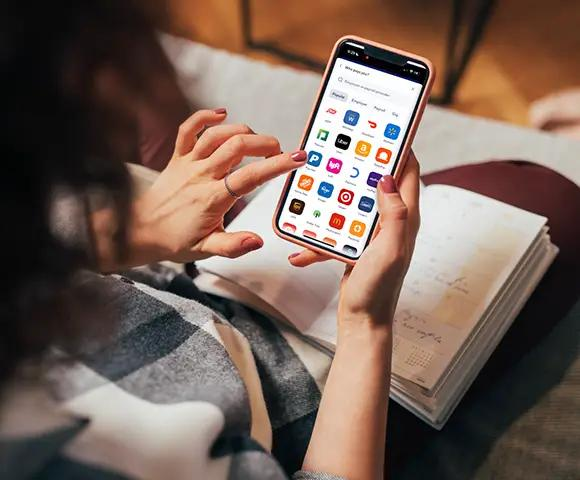
The best apps are those that solve real problems and fit your daily routine. Instead of installing too many applications, focus on tools that help you communicate, organize tasks, manage money, learn new skills, and stay informed.
Here are some useful app categories to explore:
- Communication apps: Help you make calls, send messages, and participate in video meetings.
- Productivity apps: Support task management, note-taking, calendars, and document editing.
- Navigation apps: Provide directions, traffic updates, and information about nearby places.
- Finance apps: Help you track spending, manage budgets, and access banking services.
- Learning apps: Offer courses, language practice, tutorials, and educational resources.
- Photo and video apps: Help you edit images, create videos, and organize media.
- Health and fitness apps: Can support activity tracking, workout planning, and healthy routines.
Before downloading an app, check its features, reviews, developer information, privacy policy, and compatibility with your device.
2. Make Your Smartphone Faster and More Efficient
If your phone feels cluttered or slow, a few simple changes may improve your experience. You do not always need to buy a new device to make everyday use more convenient.
Try these practical tips:
- Remove apps you no longer use.
- Restart your phone occasionally if it becomes unresponsive.
- Install system and app updates from trusted sources.
- Review storage usage and remove unnecessary downloads.
- Keep your home screen organized around frequently used apps.
- Limit unnecessary notifications that interrupt your work.
- Clear an app’s cache when appropriate, especially if it is misbehaving.
Avoid installing unfamiliar “phone booster” or cleaning apps that promise unrealistic performance improvements. Some may display excessive advertisements or request unnecessary permissions.
3. Improve Battery Life With Simple Settings

Battery life depends on your phone, battery condition, screen settings, network signal, and the applications you use. Adjusting a few settings can help your device last longer between charges.
Useful battery-saving tips:
- Reduce screen brightness or enable automatic brightness.
- Set a shorter screen timeout.
- Turn on Battery Saver or Low Power Mode when needed.
- Review which apps use the most battery.
- Disable unnecessary background activity where your phone allows it.
- Use Wi-Fi when practical and the connection is reliable.
- Avoid exposing your phone to excessive heat while charging or using it.
You do not need to close every app constantly. Modern smartphone operating systems generally manage background applications automatically. Focus instead on apps that consume unusual amounts of power.
4. Protect Your Privacy and Personal Information
Your smartphone may contain personal photos, contacts, messages, financial information, and location data. Protecting this information should be a priority whenever you install apps or browse the internet.
Follow these privacy practices:
- Use a strong screen lock, PIN, or biometric authentication.
- Review app permissions regularly.
- Allow location access only when it is necessary.
- Check whether an app genuinely needs access to your camera, microphone, or contacts.
- Avoid sharing sensitive personal information with unfamiliar apps.
- Keep your operating system and applications updated.
- Use two-factor authentication for important accounts whenever available.
On iPhone, you can review app access under Settings → Privacy & Security. Android users can review app permissions through their phone’s Settings menu; exact options vary by device and software version. Apple Support (IN)+1
5. Download Apps Safely
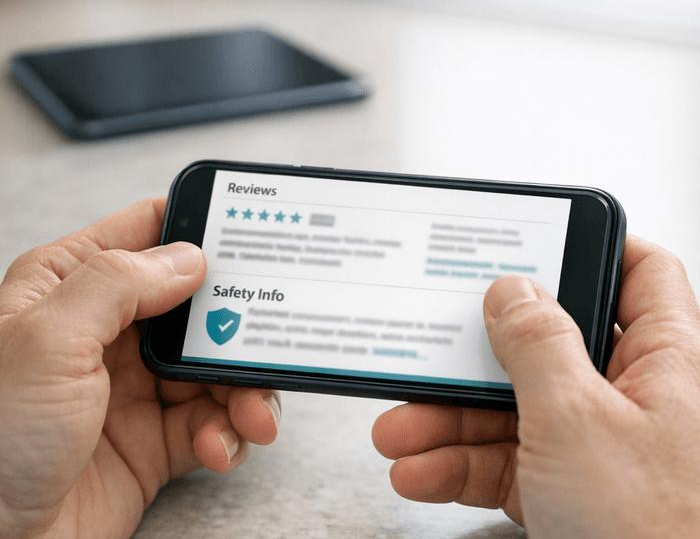
Downloading an app is easy, but not every application is trustworthy. Fake apps and misleading downloads can expose your information or create unwanted charges.
Before installing an app:
- Use your device’s official app store whenever possible.
- Check the developer’s name and app description.
- Read recent reviews and look for repeated complaints.
- Review the permissions the app requests.
- Check its privacy information and whether it contains in-app purchases.
- Avoid suspicious links that promise free premium apps or unrealistic rewards.
On iPhone, App Store privacy information can help you understand the data an app reports collecting and using. Remember that privacy labels are developer-provided disclosures, so review them alongside the app’s permissions and privacy policy. Apple (IN)+1
6. Use Smartphone Features That Save Time
Many useful smartphone features are already built into your device. Learning to use them can reduce repetitive tasks and help you stay organized.
- Voice typing: Dictate messages or notes instead of typing every word.
- Calendar reminders: Set alerts for appointments, deadlines, and important events.
- Widgets: View information such as weather, calendar events, or tasks directly from your home screen.
- Focus or Do Not Disturb: Reduce interruptions during work, study, or sleep.
- Screen recording: Record on-screen instructions or demonstrate a feature when needed.
- Clipboard and text shortcuts: Speed up repetitive typing on supported devices.
- QR code scanning: Open supported links or connect to services without manually typing a web address.
Feature names and availability vary by phone model and operating system, so check your device’s settings for the relevant options.
7. Save Mobile Data and Manage Internet Usage
If you have a limited mobile data plan, managing your internet usage can help you avoid exhausting your allowance too quickly.
Try these methods:
- Connect to a trusted Wi-Fi network when available.
- Enable Data Saver or Low Data Mode if your phone supports it.
- Set video streaming quality according to your data allowance.
- Disable automatic media downloads in apps where they are unnecessary.
- Review which applications use the most mobile data.
- Download maps, music, or other permitted content over Wi-Fi for offline use.
Be cautious when connecting to public Wi-Fi. Avoid accessing sensitive accounts on networks you do not trust, and never ignore security warnings from websites or apps.
8. Keep Your Photos and Files Organized
Photos, videos, documents, and downloads can quickly fill your phone’s storage. A simple organization routine helps you find important files and avoid losing valuable memories.
Consider these habits:
- Delete duplicate or unwanted photos after reviewing them.
- Organize important documents into clearly named folders.
- Back up essential files to a trusted cloud service or computer.
- Check which apps and media files use the most storage.
- Review your backup settings to confirm that important files are included.
- Keep recovery information secure for accounts used to store your files.
Remember that synchronizing files and backing them up are not always the same thing. Understand how your chosen service handles deletions and restores before relying on it as your only backup.
9. Make Your Phone More Secure for Online Payments

Mobile banking and digital payment apps make transactions convenient, but users should follow basic security practices to protect their money.
- Download banking and payment apps from trusted sources.
- Lock your phone and protect payment apps with available authentication features.
- Never share your banking PIN, password, or one-time password with another person.
- Verify the recipient and amount before confirming a payment.
- Avoid clicking payment links from unknown senders.
- Enable transaction notifications where available.
- Contact your bank promptly if you notice an unfamiliar transaction.
Be especially careful with messages claiming that your account will be blocked unless you click a link or share a verification code. Contact your bank through its official app or verified customer support channel if a message seems suspicious.
10. Build Better Smartphone Habits
Smartphones can make life easier, but constant notifications and unnecessary screen time may interfere with work, study, sleep, and personal activities.
Build a healthier relationship with your device by setting practical boundaries.
- Turn off notifications that are not important.
- Use Focus or Do Not Disturb during work and study sessions.
- Keep your phone away from your immediate sleeping area if it distracts you.
- Set app time limits when you want to reduce unnecessary scrolling.
- Take regular breaks during long periods of screen use.
- Spend some leisure time on offline activities such as reading, walking, or hobbies.
The goal is not to stop using your phone. It is to use it intentionally, so technology supports your daily routine instead of constantly interrupting it.
Quick Smartphone Maintenance Checklist

Use this checklist regularly to keep your phone organized, secure, and convenient to use.
Phone maintenance
nstall available security and software updates
Review app permissions and privacy settings
Remove unwanted apps and downloads
Check battery usage and storage space
Confirm important photos and files are backed up
Review banking and account security settings
Disable unnecessary notifications
FAQ’s
1. Which apps are most useful for everyday life?
Productivity, communication, navigation, finance, learning, and photo-editing apps can be useful depending on your needs.
2. How can I make my smartphone battery last longer?
Reduce brightness, enable battery-saving mode, and review apps that use excessive power.
3. How can I protect my phone from unsafe apps?
Use trusted app stores, check developer details, review permissions, and keep your phone updated.
4. How can I free up smartphone storage?
Remove unwanted downloads, delete unnecessary files, and review large apps and videos.
5. How can I improve my smartphone privacy?
Use a screen lock, review app permissions, limit unnecessary location access, and enable two-factor authentication for important accounts.