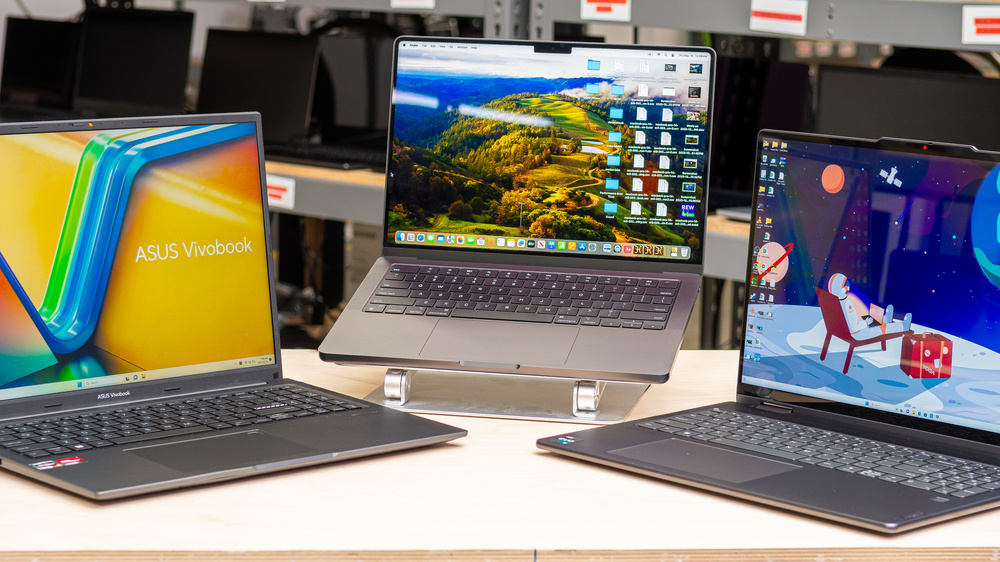
Buying a new laptop or computer in 2026 can be exciting, but it can also get confusing pretty quickly.There are slim laptops made for students, powerful machines built for demanding professional work, gaming laptops with dedicated graphics, compact mini PCs, and premium computers designed for people who want speed without compromise.
With so many choices sitting on the market, it’s easy to get distracted by impressive specifications and forget the most important question: What do you actually need the computer to do?
If most of your day involves browsing the web, joining video calls, writing documents, watching videos, or working with spreadsheets, you probably don’t need an ultra-expensive machine.On the other hand, video editors, developers, designers, gamers, and other power users may need considerably more processing power, memory, graphics performance, and storage.
The best computer is the one that fits your everyday routine, your budget, and the kind of work you expect to do with it.
This guide looks at the major laptop and computer categories in 2026, explains which features deserve your attention, and helps you understand what to look for before spending your money.
What Should You Look for in a Laptop or Computer?
Before looking at brands or models, start with your own usage. Best Laptops Think about what you do on a normal day. Do you mainly browse the internet and answer emails? Are you working with large spreadsheets? Do you edit photos or videos? Maybe you’re looking for a gaming machine or a computer for college.
Those answers matter more than simply choosing the computer with the longest specification list.
Here are the main features worth checking:
- Processor: The processor affects everyday speed, multitasking, and performance in demanding applications.
- RAM: More RAM is helpful when you keep many applications, browser tabs, or large files open at once.
- Storage: SSD storage helps the computer start quickly and makes applications and files load faster.
- Display: Pay attention to screen size, resolution, brightness, panel quality, and refresh rate.
- Graphics: Integrated graphics are suitable for many everyday tasks, while a dedicated GPU is useful for gaming, video editing, 3D work, and other graphics-heavy tasks.
- Battery life: A major consideration if you regularly work, study, or travel away from a power outlet.
- Portability: A lighter laptop can make a noticeable difference if you carry it around every day.
- Connectivity: Check which USB, HDMI, headphone, networking, and other ports are available.
- Build quality: A solid chassis is particularly useful if your computer travels with you.
- Operating system: Windows, macOS, and ChromeOS offer different software options and user experiences.
Best Laptops & Computers for Different Needs
| Category | Best For | Key Features to Look For | Typical Budget |
|---|---|---|---|
| Budget Laptop | Browsing, documents, online classes | 8GB RAM, SSD, efficient processor | Entry-level |
| Student Laptop | Study, research and everyday work | Lightweight design, good battery, 8–16GB RAM | Budget to mid-range |
| Work Laptop | Office work and multitasking | 16GB RAM, fast SSD, comfortable keyboard | Mid-range |
| Premium Laptop | Professionals and frequent travelers | High-quality display, strong performance, premium build | Premium |
| Gaming Laptop | Gaming and demanding graphics | Dedicated GPU, high-refresh display, strong cooling | Mid-range to premium |
| Creator Laptop | Video editing, design and photography | Powerful CPU/GPU, color-accurate display, plenty of RAM | Mid-range to premium |
| 2-in-1 Laptop | Flexible work and entertainment | Touchscreen, convertible hinge, stylus support | Mid-range |
| Chromebook | Web-based work and education | ChromeOS, long battery life, lightweight design | Budget |
| Mini PC | Small desks and home offices | Compact design, efficient processor, multiple ports | Budget to mid-range |
| Desktop PC | Upgrades and high performance | Strong CPU/GPU, upgradeable components | Mid-range to premium |
| All-in-One PC | Clean home or office setup | Integrated display, simple setup, minimal cables | Mid-range to premium |
1. Best Budget Laptops
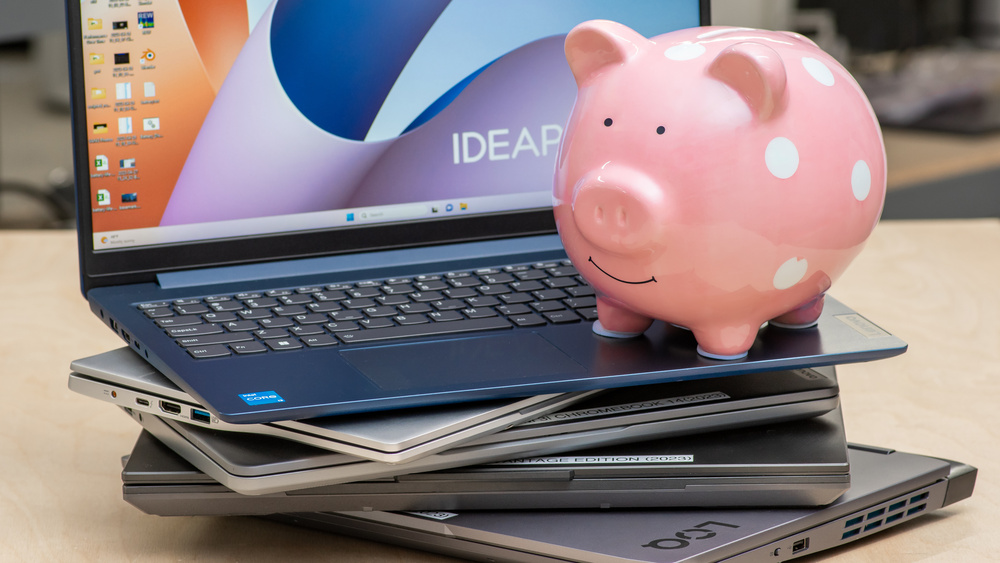
A good budget laptop doesn’t have to feel like a compromise. Best Laptops If your everyday routine consists of browsing, email, documents, video calls, streaming, online classes, or basic office work, an affordable laptop can handle those tasks comfortably.
You don’t necessarily need a powerful dedicated graphics card or a high-end processor for this type of use. Instead, put your money toward the features you’ll notice every day.
An SSD and at least 8GB of RAM are sensible starting points. If you tend to keep lots of browser tabs and applications open, 16GB of RAM can give you more breathing room.
The screen is worth considering too. A Full HD display can make reading documents, watching videos, and spending long hours working much more pleasant.
A budget laptop can be a good fit for:
- Students
- Home users
- Basic office work
- Web browsing
- Streaming
- Online classes
2. Best Laptops for Students
Students don’t just need a computer that works well. Best Laptops They need one that’s easy to carry from one place to another.
A laptop that feels fine on a desk can become surprisingly annoying when you’re carrying it between classrooms, libraries, study sessions, and home every day. That’s why weight and battery life deserve just as much attention as performance.
For general studying, look for 8GB to 16GB of RAM, SSD storage, a comfortable keyboard, a decent webcam, and reliable Wi-Fi.
If you’re studying engineering, architecture, computer science, 3D design, video production, or another demanding subject, your requirements may be higher. In that case, a more powerful processor and dedicated graphics may be worth considering.
3. Best Work & Business Laptops
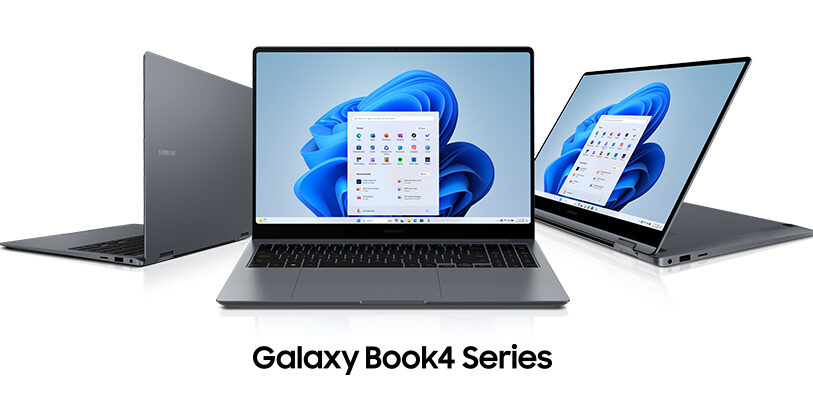
Modern work can put a lot more pressure on a computer than it first appears.
You might have a browser filled with tabs while answering emails, attending a video meeting, editing a spreadsheet, working on a presentation, and keeping a messaging app open in the background.
That’s where a capable work laptop becomes useful.
For this kind of multitasking, 16GB of RAM is a practical target for many users. A modern processor and fast SSD can also keep everyday tasks feeling responsive.
Don’t overlook the things you physically interact with all day. A comfortable keyboard, good trackpad, quality webcam, and useful selection of ports can make a bigger difference to your workday than a small specification upgrade.
4. Best Gaming Laptops
Gaming laptops have come a long way, but buying one requires looking beyond the graphics card.
A gaming machine generally needs a capable processor, dedicated graphics, fast memory, SSD storage, and a cooling system that can handle sustained workloads.
A high-refresh-rate display can also make fast games feel noticeably smoother.
At the same time, gaming laptops involve some compromises. Powerful hardware can mean more weight, more heat, louder fans, and shorter battery life away from the charger.
So don’t compare graphics cards alone. Look at the complete package, including:
- GPU performance
- Processor
- Cooling
- Display
- Refresh rate
- Storage
- RAM
- Battery behavior
- Upgrade options
- Overall size and weight
If you don’t need portability, a desktop gaming PC may give you more flexibility, especially when it comes to upgrading components later.
5. Best Laptops for Creators
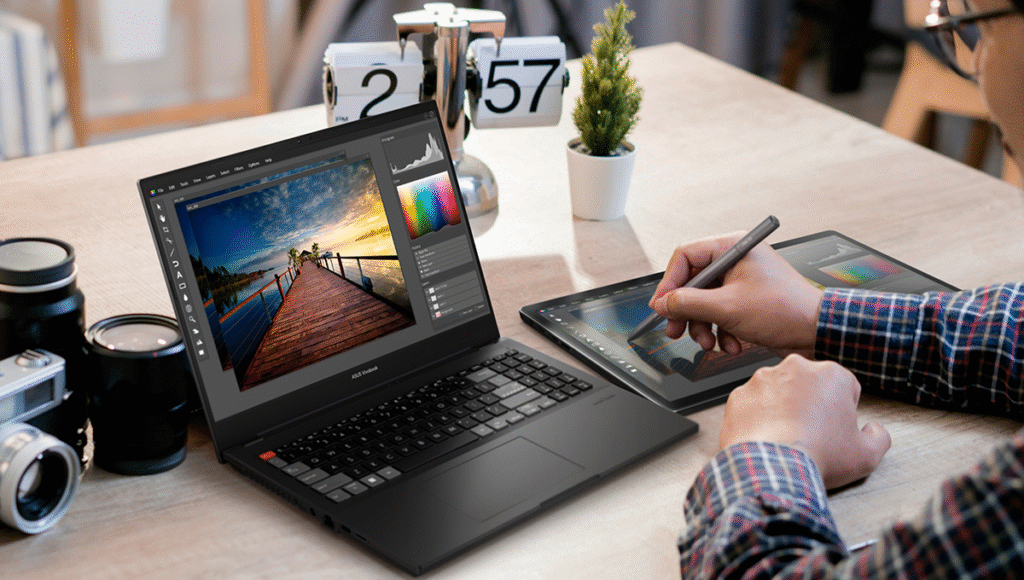
Creative work can place very different demands on a computer.
A photographer working with large RAW files, a video editor handling high-resolution footage, a graphic designer using professional design software, and a 3D artist all need more than a computer designed simply for web browsing.
A creator-focused machine should have enough processing power, plenty of memory, fast storage, and a display capable of showing colors accurately.
For video editing and 3D work, a capable dedicated GPU can also make a substantial difference.
For demanding creative applications, 16GB or more of RAM is a useful starting point, although professionals working with particularly large projects may benefit from considerably more.
6. Best 2-in-1 Laptops
A 2-in-1 laptop sits somewhere between a traditional notebook and a tablet.
Depending on the design, the screen can fold backward or the display can detach, giving you different ways to use the same device.
This flexibility can be handy for taking notes, reading, drawing, watching videos, giving presentations, or simply switching between touchscreen and keyboard-based work.
If you’re considering a 2-in-1, don’t just look at the touchscreen.
Check the:
- Hinge design
- Stylus compatibility
- Weight
- Keyboard quality
- Battery life
- Screen quality
- Port selection
A convertible laptop should feel comfortable in both laptop and tablet-style modes.
7. Best Desktop Computers
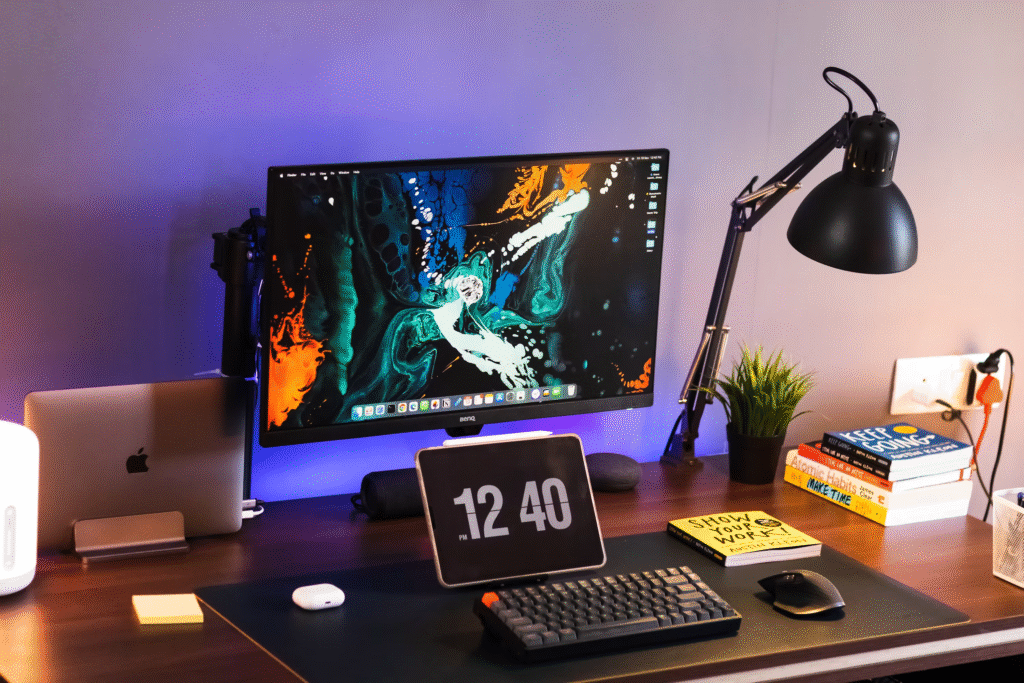
Desktop computers still make plenty of sense in 2026.
If you don’t need to carry your computer around, a desktop gives you the freedom to build a larger setup and, depending on the model, upgrade individual components later.
There’s also more room for cooling and larger components than you’ll typically find inside a thin laptop.
Desktops are particularly useful for:
- Gaming
- Professional workloads
- Home offices
- Creative work
- Large monitor setups
- Users who value upgradeability
There is one obvious trade-off: the computer itself isn’t the whole setup.
You’ll generally need to account for a monitor, keyboard, mouse, speakers, webcam, and other accessories. Once everything is on the desk, a desktop setup takes noticeably more space than a laptop.
8. Mini PCs: Small Size, Useful Performance
Mini PCs are a great reminder that a desktop doesn’t have to mean a huge tower under your desk.
These small computers can sit neatly beside or behind a monitor and are useful for office work, browsing, media playback, programming, and everyday computing.
Some more powerful mini PCs can also handle demanding workloads, although compact designs can have fewer upgrade options than traditional desktop towers.
If you have a small workspace, a mini PC paired with a good monitor can create a clean setup without taking over your desk.
9. All-in-One Computers
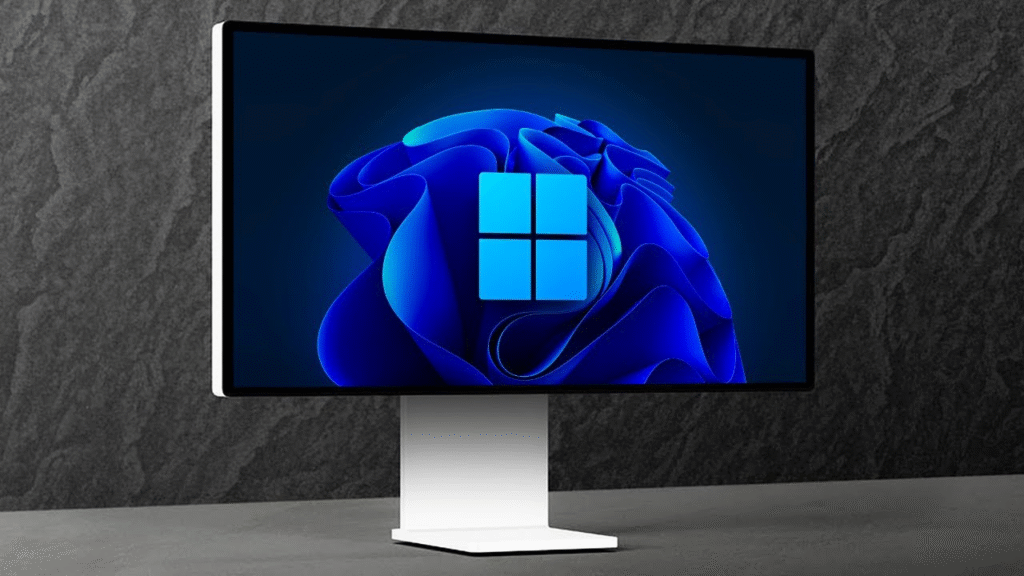
An all-in-one PC combines the computer hardware and display into one unit.
For people who dislike cable clutter, that’s a pretty appealing idea.
You don’t have to find space for a separate desktop tower, and the resulting setup can look particularly clean in a home office, reception area, bedroom, or family workspace.
All-in-one computers are well suited to general productivity and everyday use.
The main thing to remember is upgradeability. Compared with a traditional desktop, an all-in-one may give you fewer opportunities to replace or upgrade individual components later.
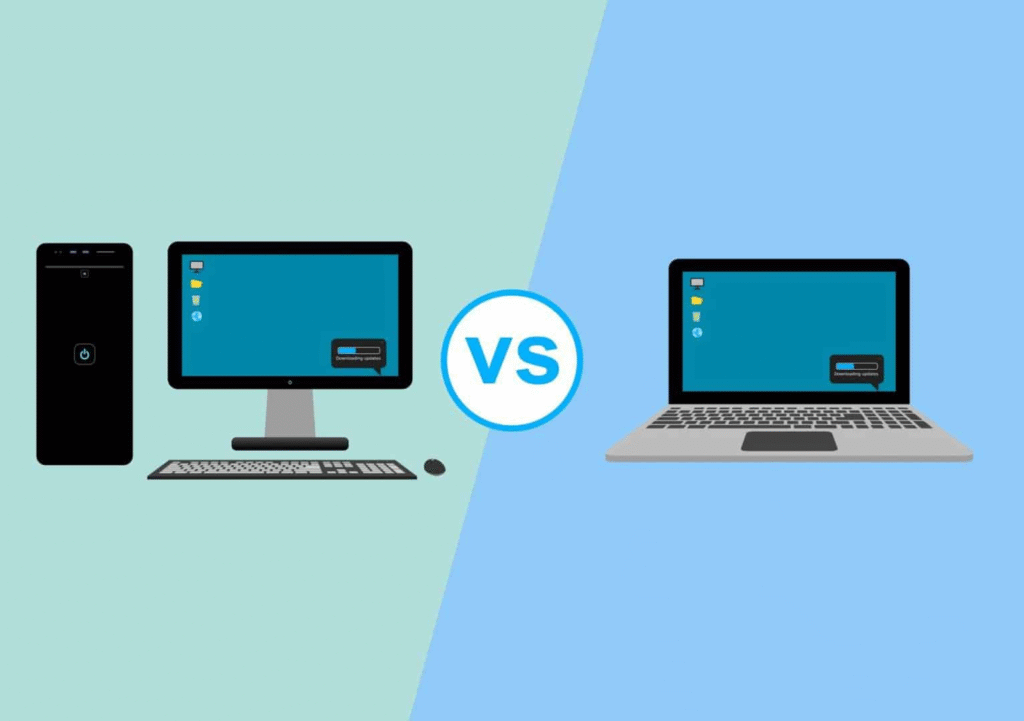
Laptop vs Desktop: Which One Makes More Sense?
| Feature | Laptop | Desktop |
|---|---|---|
| Portability | Excellent | Very limited |
| Desk Space | Low | Higher |
| Battery | Built-in | Requires power |
| Upgradeability | Limited on many models | Usually better |
| Performance | Excellent on higher-end models | Strong performance options |
| Cooling | More constrained | More flexibility |
| Gaming | Convenient and portable | Often better for upgrades |
| Home Office | Very convenient | Great for permanent setups |
| Travel | Easy | Not practical |
| Accessories | Many are built in | Usually purchased separately |
The decision often comes down to one simple question: Do you need to take your computer with you?
If the answer is yes, a laptop is the obvious choice for most people. If the computer will stay in one place, a desktop can offer more flexibility and upgrade potential.
How Much RAM Do You Need in 2026?
RAM requirements really depend on how you use your computer.
For basic browsing, documents, streaming, and simple schoolwork, 8GB can still be workable. For many everyday users, though, 16GB is a more comfortable target, particularly if multitasking is part of your routine.
People working with large datasets, creative applications, virtual machines, software development environments, or heavy multitasking may want 32GB or more.
There’s no prize for buying the largest amount of RAM available. Think about what you actually do and whether the computer allows you to upgrade later.
How Much Storage Should You Get?
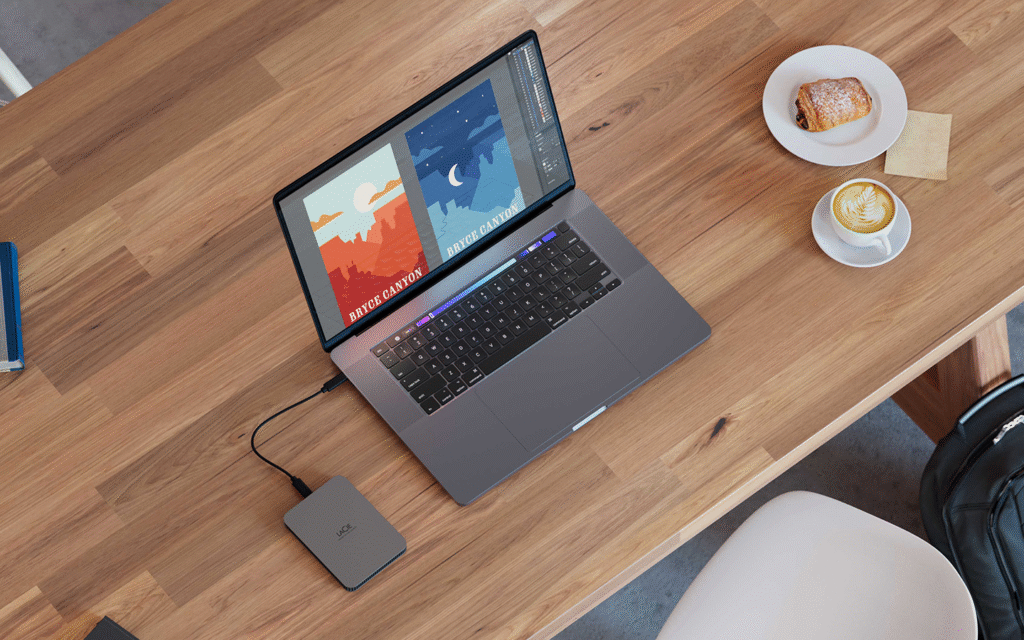
For many users, 512GB of SSD storage offers a useful balance between capacity and cost.
A 256GB drive can work if you mainly use cloud storage and don’t keep many large files locally. However, applications, photos, videos, games, and downloaded files can eat through that space faster than expected.
If you’re regularly working with large video files, photo libraries, games, or other sizeable projects, 1TB or more may make more sense.
You can also extend your storage with an external SSD or cloud storage, which can be a practical alternative to replacing your computer.
Windows, macOS or ChromeOS?
Your operating system matters because it affects the software you can use and how the computer fits into your existing devices.
Windows offers a huge range of laptops and desktops, from affordable everyday computers to powerful gaming and professional machines.
macOS is built around Apple’s hardware and ecosystem and is used across a wide range of personal and professional workflows.
ChromeOS takes a more web-focused approach and works particularly well for people whose everyday tasks revolve around browser-based applications and cloud services.
Instead of asking which operating system is universally better, consider which one works with the software, services, and devices you already use.
Smart Tips Before Buying a Laptop or Computer

Check the Complete Configuration
Don’t stop at the processor name.
Look at RAM, storage, display quality, graphics, ports, battery capacity, wireless connectivity, and other specifications that will affect your actual experience.
Think About Your Future Needs
You don’t need to buy a workstation just because you might someday edit a video.
At the same time, if you already know that your workload is going to become more demanding, buying a slightly more capable configuration now could help the computer remain useful for longer.
Don’t Pay for Features You Won’t Use
A powerful dedicated graphics card makes little sense if your main activities are writing documents, browsing the web, and attending online meetings.
Likewise, choosing the cheapest possible laptop isn’t ideal if you’re planning to edit professional video or run demanding creative applications.
The sweet spot is a computer that matches your real workload.
Check Upgrade Options
Upgradeability can vary dramatically between computers.
Some laptops have soldered memory or limited storage expansion, while desktop computers often provide much more room for future upgrades.
If you expect your needs to grow, check what’s replaceable before you buy.
Compare the Total Setup Cost
When comparing desktops, remember that the advertised computer price may not include everything you need.
Add the cost of the monitor, keyboard, mouse, speakers, webcam, and other accessories to get a realistic picture of what the complete setup will cost.
Read the Warranty Details
Before spending a significant amount of money, check the warranty period and support options.
It’s also worth looking at repair policies, accidental-damage coverage where available, and the support offered in your region.
Frequently Asked Questions
1. What should I look for when buying a laptop in 2026?
Focus on the processor, RAM, SSD storage, display, battery life, graphics, portability, ports, build quality, and operating system. Most importantly, choose specifications that match how you actually plan to use the laptop.
2. Is 8GB RAM enough for a laptop in 2026?
8GB can still handle basic browsing, documents, streaming, and simple schoolwork. For smoother multitasking, 16GB is a more comfortable choice for many users.
3. How much storage should a laptop have?
For many users, 512GB of SSD storage is a practical middle ground. If you work with large video files, photo libraries, games, or other large files, 1TB or more may be more suitable.
4. Which is better for students: a laptop or desktop?
A laptop is generally more convenient for students because it can be carried between classes, libraries, and home. Lightweight design, battery life, a comfortable keyboard, and reliable Wi-Fi are useful features to prioritize.
5. Are budget laptops good for everyday use?
Yes. A budget laptop with an SSD and sufficient RAM can comfortably handle browsing, email, documents, video calls, streaming, and online classes.